
As part of my home network I have setup VPN connectivity so that I can access my stuff also when I’m not at home. Unifi Security Gateway offers PPTP and L2TP VPN servers out of the box but there are better alternatives available like WireGuard and OpenVPN. As with everything I wanted to learn new stuff so I chose WireGuard for this task. “WireGuard is an extremely simple yet fast and modern VPN” that “aims to be as easy to configure and deploy as SSH.” A VPN connection is made simply by exchanging very simple public keys — exactly like exchanging SSH keys — and all the rest is transparently handled by WireGuard. Unfortunately the information on how to get WireGuard up & running and make the installation persistent after USG upgrades could not be found from one single place. This is why I decided to gather the data under this one post.
Installing WireGuard
Login to your USG via SSH.
Download the latest
ugw4package from wireguard-vyatta-ubnt releases and install it on your USG:
curl -fLSs -o /tmp/ugw4-v1-v1.0.20200729-v1.0.20200513.deb \
  https://github.com/WireGuard/wireguard-vyatta-ubnt/releases/download/1.0.20200729-1/ugw4-v1-v1.0.20200729-v1.0.20200513.deb
dpkg -i /tmp/ugw4-v1-v1.0.20200729-v1.0.20200513.deb
- Create private and public keys. Copy the public key somewhere as you will need it when adding a peer in your device’s WireGuard settings:
cd /config/auth
umask 077
mkdir wireguard
cd wireguard
wg genkey > wg_private.key
wg pubkey < wg_private.key > wg_public.key
- Copy the example
config.gateway.jsonto/srv/unifi/data/sites/default(CloudKey) or/var/lib/unifi/data/sites/default(Raspberry Pi etc.), using the site name you’re running instead ofdefault. ChangeYOUR-DEVICE-PUBLIC-KEYto a public key generated on your WireGuard client device. Then through the Controller Web UI navigate to Devices, click the USG row, and in the Properties window go to Config > Manage Device and click Provision. Note that the mask associated withallowed-ipsis not a netmask:
{
    "firewall": {
        "group": {
            "network-group": {
                "remote_user_vpn_network": {
                    "description": "Remote User VPN subnets",
                    "network": [
                        "10.2.1.0/24"
                    ]
                }
            }
        }
    },
    "interfaces": {
        "wireguard": {
            "wg0": {
                "address": [
                    "10.2.1.1/24"
                ],
                "firewall": {
                    "in": {
                        "name": "LAN_IN"
                    },
                    "local": {
                        "name": "LAN_LOCAL"
                    },
                    "out": {
                        "name": "LAN_OUT"
                    }
                },
                "listen-port": "51820",
                "mtu": "1352",
                "peer": [{
                    "YOUR-DEVICE-PUBLIC-KEY": {
                        "allowed-ips": [
                            "10.2.1.5/32"
                        ],
                        "persistent-keepalive": 25
                    }
                }],
                "private-key": "/config/auth/wireguard/wg_private.key",
                "route-allowed-ips": "true"
            }
        }
    }
}
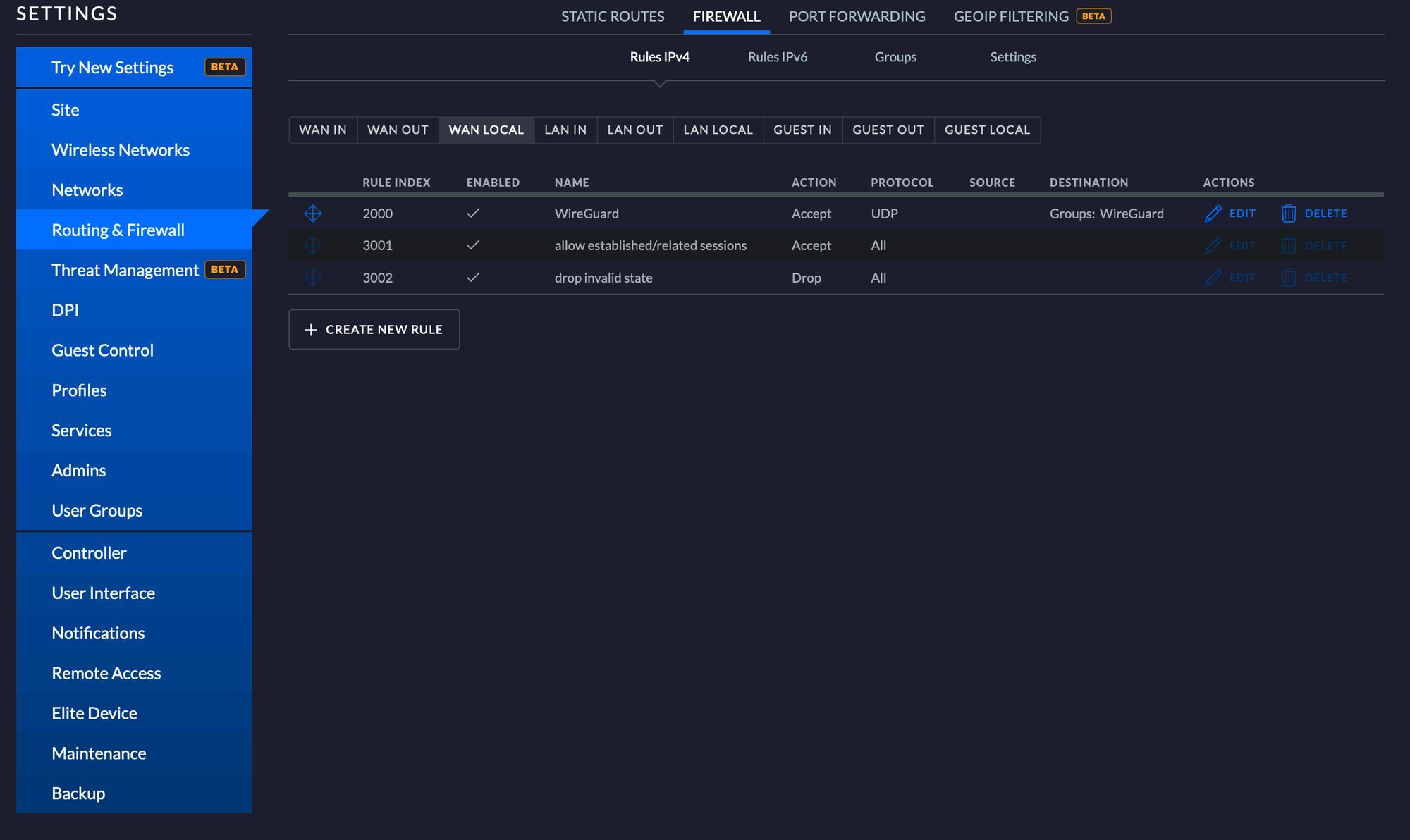
- To allow remote access, navigate to Settings > Routing & Firewall > Firewall > WAN LOCAL and create a new rule to accept UDP traffic to port 51820. You need to create a Port Group under Destination and add port 51820 via that. Remember to make the changes under the same site where you placed the config file.
- Install WireGuard on your device and configure it with the following. With this configuration all traffic will be sent through the VPN server. Full config reference: wireguard-docs.
[Interface]
PrivateKey = YOUR-DEVICES-PRIVATE-KEY
Address = 10.2.1.5/32
DNS = 1.1.1.1

[Peer]
PublicKey = YOUR-SERVERS-PUBLIC-KEY
AllowedIPs = 0.0.0.0/0
Endpoint = YOUR-SERVERS-PUBLIC-IP:51820
PersistentKeepalive = 21
- You can generate a QR code to easily configure your phone by running:
qrencode -t ansiutf8 <path_to_config_file>
- You should now be able to make a VPN connection with WireGuard to your USG.
Persisting Changes
All CLI-made configurations and installed applications will be overwritten when you upgrade or reboot your USG. Fortunately there is a way to persist these changes. The folks at Helm Rock Consulting have implemented install-edgeos-packages to solve exactly this problem.
- Install
install-edgeos-packages:
curl -O https://raw.githubusercontent.com/britannic/install-edgeos-packages/master/install-pkgs
sudo install -o root -g root -m 0755 install-pkgs /config/scripts/post-config.d/install-pkgs
- Add the WireGuard package so it gets reinstalled after upgrade or reboot:
sudo mkdir -p /config/data/install-packages
cd /config/data/install-packages
curl -fLSs -O https://github.com/WireGuard/wireguard-vyatta-ubnt/releases/download/1.0.20200729-1/ugw4-v1-v1.0.20200729-v1.0.20200513.deb
- Export and copy
config.gateway.jsonto the Controller host. This ensures CLI changes are provisioned back to the USG after reboot or upgrade. To get your config, run via SSH on the USG:
mca-ctrl -t dump-cfg > config.gateway.json
After these steps you have a fully functional WireGuard server installation that persists through reboots and upgrades.
Sources: pamolloy’s gist and install-edgeos-packages docs